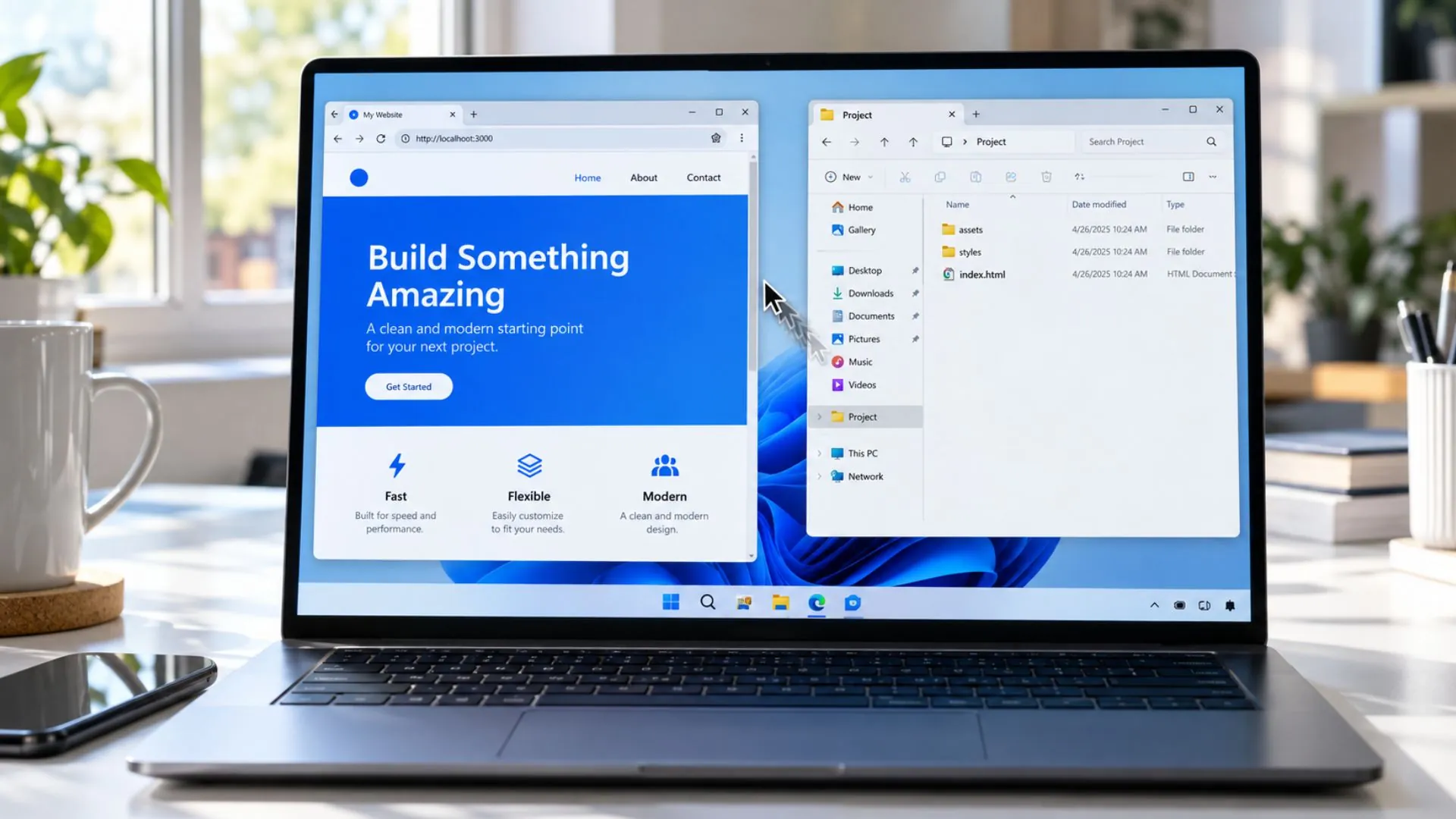
There’s a file on your desktop called index.html, and double-clicking it feels strangely like defusing a bomb. Will it open? In what? Why does it launch your code editor instead of showing a webpage? If you typed “how to run HTML file” into Google with that exact frustration, you are in the right place. Every developer alive has stood at this exact spot, and the answer turns out to be refreshingly simple: an HTML file needs no installation, no compiler, and no server to run. A browser is the runtime, and you already have one.
That said, there are three genuinely different ways to run an HTML file, and picking the right one for your situation saves real frustration. Let’s take them in order of effort.
Table of Contents
Create a Test HTML File First (30 Seconds)
Before you learn how to run HTML file code, you need a file. If you don’t have one yet, make it now. Open any plain text editor (Notepad on Windows, TextEdit in plain text mode on Mac, or VS Code), paste the code below and save it as index.html. Check that the name really ends in .html and not .txt.
<!DOCTYPE html>
<html lang="en">
<head>
  <meta charset="UTF-8">
  <title>My first page</title>
</head>
<body>
  <h1>It works!</h1>
  <p>If you can read this in a browser, you know how to run an HTML file.</p>
</body>
</html>
Now try each method below with this file and see the same page appear three different ways.
Method 1: The Double-Click (Zero Setup)
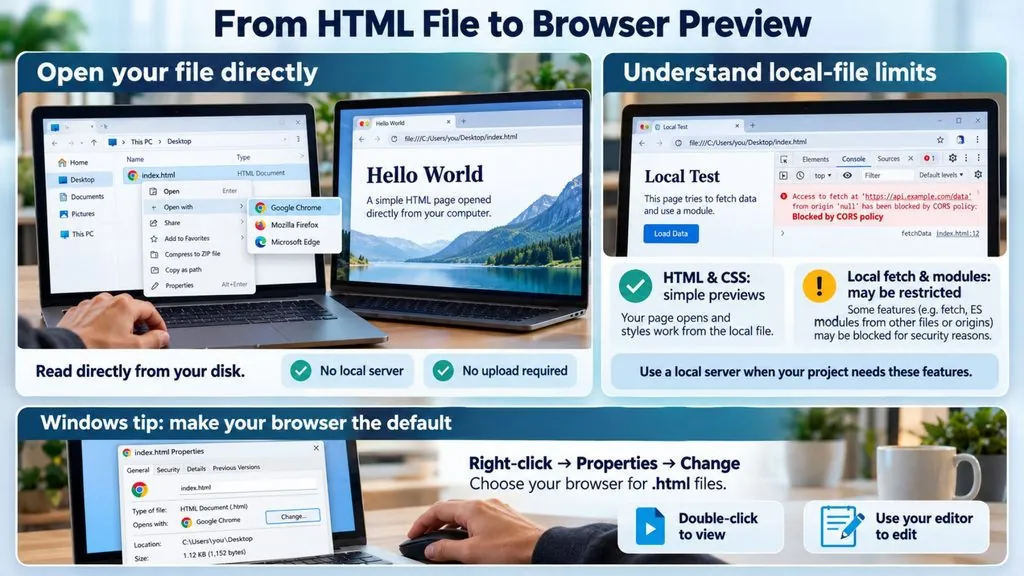
The simplest path: right-click your file, choose “Open with,” and pick any browser. Chrome, Firefox, Edge, Safari, they all treat HTML files the same way. The page renders instantly, and your address bar shows something like file:///C:/Users/you/Desktop/index.html.
That file:/// prefix means the browser is reading straight from your disk. No internet involved, no server, nothing uploaded anywhere. For learning HTML, checking a saved page, or testing a simple layout, this is all you need.
The catch: the file:// protocol runs in a security straitjacket. Browsers block certain features on local files, most famously fetch() requests to load other local files, some JavaScript module imports, and various APIs. Your page renders, but anything that “loads data” may silently fail with CORS errors in the console. If your project is pure HTML and CSS, you’ll never notice. The moment JavaScript tries to fetch a JSON file, you will.
For example, this line works on a local server but fails when the page is opened with a double-click, because the browser treats every local file as a separate, untrusted origin:
fetch('data.json')
  .then((res) => res.json())
  .then((data) => console.log(data));
One quality-of-life tip for Windows users: set your default program for .html files to your browser (right-click, Properties, Change), so double-click means “view” and you use your editor’s own menu for “edit.” That single tweak ends the “why does it open in Notepad” saga forever.
Method 2: A Local Server (The Developer Way)

When your project grows past one file, developers run a tiny local server that mimics real hosting. The most popular route in 2026 remains the Live Server extension for VS Code: install it, right-click your HTML file, choose “Open with Live Server,” and your page appears at an address like http://127.0.0.1:5500.
Two upgrades come with that address. First, the security restrictions of file:// vanish, so fetch requests, modules, and modern APIs behave exactly as they will in production. Second, live reload: every time you save, the browser refreshes itself. Watching your page update the instant you hit Ctrl+S is quietly addictive, and it’s how most professionals work all day.
Already have Python installed? You don’t even need an extension. Open a terminal in your project folder and run python -m http.server, then visit http://localhost:8000. One command, same benefits, minus the auto-reload.
cd path/to/your-project
python -m http.server 8000
On macOS and Linux the command is often python3 -m http.server 8000. Press Ctrl+C in the terminal to stop the server. If you use Node.js instead, npx serve does the same job from your project folder.
The catch: this method assumes tooling. If you’re on a school computer, a borrowed laptop, or a tablet, installing VS Code and extensions isn’t always possible. Which brings us to the third door.

Method 3: An Online Editor (No Files, No Installs)

Sometimes the question isn’t “how do I run this file” but “how do I see this HTML right now, on this device, with zero setup.” That’s the job of browser-based editors: open the site, paste your code (or drag the .html file straight onto the page), and the rendered result appears beside your markup instantly.
This route has quietly become the default for students and anyone working across multiple machines. Nothing to install means nothing to be blocked by IT policies. The code auto-saves in your browser, so closing the tab doesn’t lose your work. And because the preview updates as you type, it doubles as a learning accelerator: cause and effect, keystroke by keystroke.
The catch: browser-based editors shine for single-page work and testing, less so for sprawling multi-folder projects with dozens of linked assets. Use them for what they’re best at: speed, experiments, and portability, which makes them the easiest answer to how to run HTML file snippets on any device.
How to Run HTML File: Which Method Should You Use?
| Situation | Best method |
|---|---|
| Just viewing a saved page | Double-click |
| Building a real multi-file project | Local server |
| Learning, experimenting, quick tests | Online editor |
| School or locked-down computer | Online editor |
| JavaScript fetch/CORS errors locally | Local server |
The honest answer for most people is a mix. Developers who run Live Server all day still paste snippets into an online editor to isolate a bug. Students who live in online editors eventually install VS Code when projects grow. There’s no loyalty oath; there’s just the fastest path to seeing your page right now.
How to Run HTML File: FAQ
How to run HTML file on Windows?
Right-click the file, choose “Open with,” and pick Chrome, Edge, or Firefox. To make it permanent on Windows 11, go to Settings, Apps, Default apps, type .html in the file type search box, and select your browser. From then on, a double-click opens the page instead of the code.
How to run HTML file on Mac?
Right-click (or Control-click) the file in Finder, choose “Open With,” and select Safari or Chrome. You can also drag the file straight onto an open browser window. To change the default, select the file, press Cmd+I, pick a browser under “Open with,” and click “Change All.”
How to run HTML file on Android or iPhone?
Mobile browsers make opening local files awkward, and the steps vary by phone and file manager. The reliable shortcut is an online editor: open it in your mobile browser, paste the code, and the preview renders right away with no app to install.
How to run HTML file in VS Code?
VS Code edits HTML but does not display it on its own. Install the Live Server extension, then right-click your file and choose “Open with Live Server,” or click “Go Live” in the status bar. Your default browser opens the page and reloads it every time you save.
Why does my HTML file open as code instead of a webpage?
Two usual suspects. Either your system opens .html files with a text editor (fix the default app as described above), or the file is secretly named index.html.txt because Windows hides known extensions. Turn on “File name extensions” in File Explorer’s View menu, rename the file, and it will open in your browser.
Do I need internet to run an HTML file?
No. A double-click or a local server works completely offline. You only need a connection if the page loads fonts, images or scripts from other websites.
Can I run PHP or Python inside an HTML file?
Not in the browser. Browsers only run HTML, CSS and JavaScript. PHP needs a server with PHP installed (such as XAMPP or real web hosting), and the server sends the finished HTML to the browser.
Final Thoughts
Whichever answer to how to run HTML file code you pick, notice what’s missing from every method above: nothing to buy, nothing to compile, no gatekeeper. The web remains the most open runtime in computing, and it starts with a text file and any browser from the last decade. That accessibility is easy to take for granted until you compare it with building for any app store.
If you just want the fastest answer to how to run HTML file code right now, drop your file into our free online HTML editor with live preview and watch it render before this page finishes scrolling.
Which camp are you in: faithful double-clicker, terminal server person, or browser-tab minimalist?