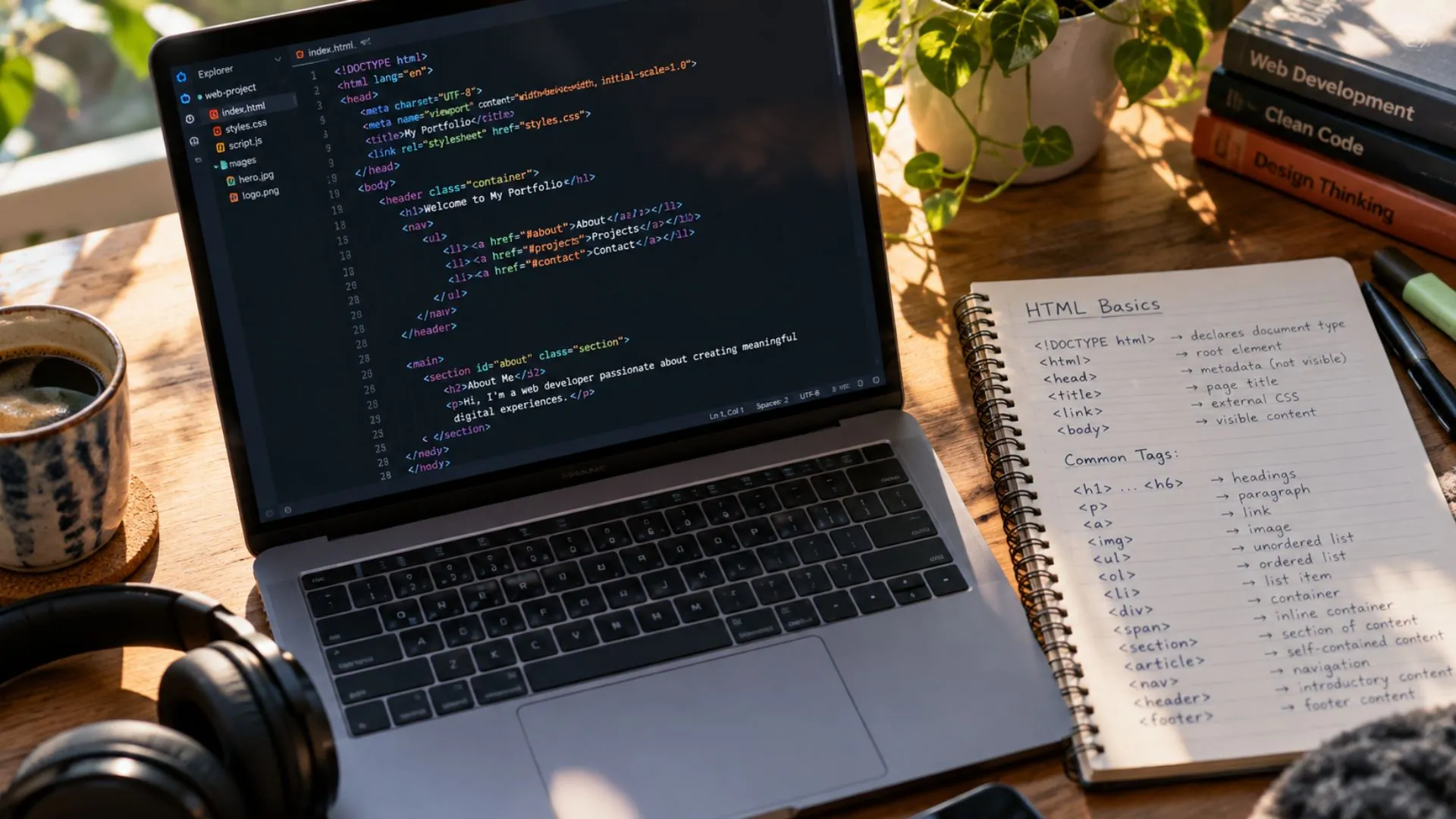
The HTML specification defines more than 100 different elements, and here’s the number nobody tells beginners: working developers use about 20 of them daily. The rest are specialists, historical leftovers, and tags so obscure that senior engineers Google them too. This is the best news a beginner learning HTML basics can get, because it shrinks “learn HTML” from a semester-sized mountain into a weekend-sized hill.
So let’s climb the hill properly. These twenty tags are the HTML basics behind the vast majority of pages you’ve ever visited, grouped the way you’ll actually use them, each with an example you can copy.
Table of Contents
The Skeleton: 5 Tags Every Page Needs
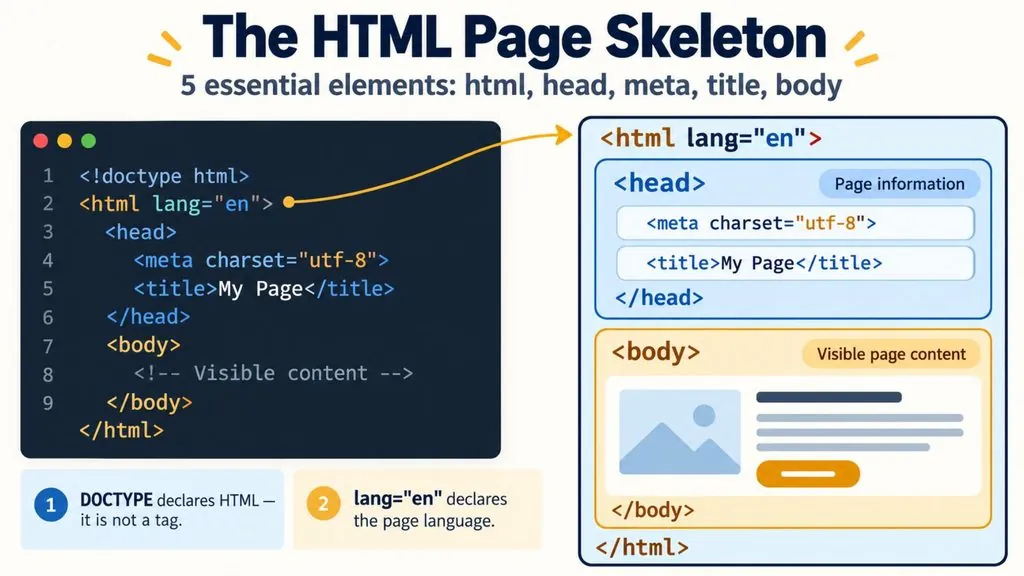
Every HTML document starts with the same frame:
<!doctype html>
<html lang="en">
  <head>
    <meta charset="utf-8">
    <title>My Page</title>
  </head>
  <body>
    <!-- everything visible goes here -->
  </body>
</html>
That’s five of your twenty already: <html> wraps everything, <head> holds invisible machinery (character encoding, the browser tab title via <title>, and <meta> settings), and <body> holds everything users see. Beginners sometimes put visible content in the head or metadata in the body; browsers usually forgive it, but forgiving is not the same as correct.
One habit worth building on day one: the lang="en" attribute. Screen readers use it to pick the right pronunciation, and browsers use it to offer translation and apply the right hyphenation rules. One word, permanent payoff.
The Text Layer: 6 Tags That Carry Your Words
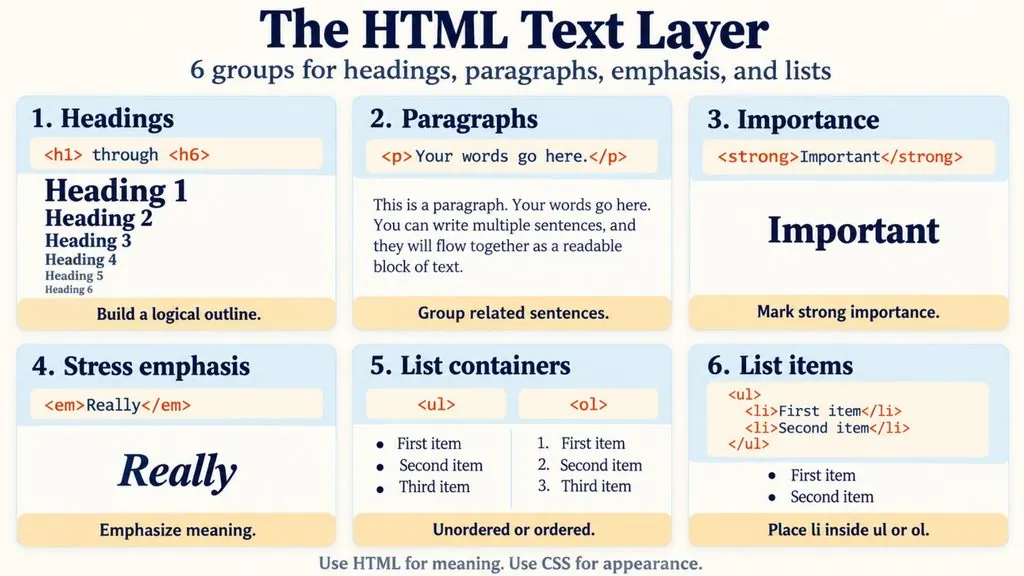
Content lives in a handful of workhorses. Headings, <h1> through <h6>, form your page’s outline; think of them as a table of contents, not a font-size picker. Paragraphs go in <p>. When you need emphasis, <strong> marks importance and <em> marks stress, and both carry meaning in the markup itself, unlike purely visual bolding with CSS.
Then come lists, criminally underused by beginners: <ul> for bullets, <ol> for numbered sequences, each holding <li> items. Navigation menus, feature lists, step-by-step instructions: under the hood, half the web is lists wearing CSS costumes.
<h1>Learn HTML Basics</h1>
<p>HTML is <strong>easier</strong> than it looks, and <em>you</em> can start today.</p>
<h2>What you need</h2>
<ul>
  <li>A text editor</li>
  <li>A web browser</li>
</ul>
<h2>Steps</h2>
<ol>
  <li>Write the code</li>
  <li>Save it as index.html</li>
  <li>Open it in your browser</li>
</ol>
Counting honestly (headings as one entry), that’s <h1>-<h6>, <p>, <strong>, <em>, <ul>/<ol>, and <li>: six entries, bringing our list to eleven entries so far.
The Connectors: Links, Images, and Buttons
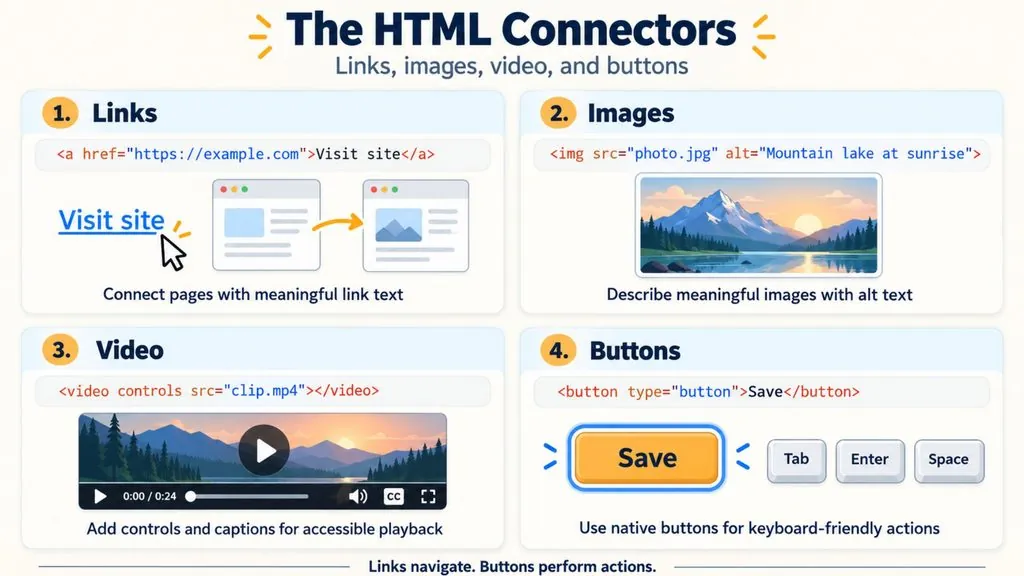
The “H” in HTML stands for hypertext, and one tag delivers on it. The anchor, <a href="https://example.com">visible text</a>, is arguably the most important tag ever created; it’s what makes the web a web instead of a stack of documents.
Images ride on <img src="photo.jpg" alt="what the image shows">. The alt attribute isn’t decoration; it’s what appears when images fail, what screen readers speak aloud, and what image search indexes. An image without alt text is half an image.
The third connector is <button>, and it deserves special respect: beginners fake buttons out of styled <div> elements constantly, then wonder why keyboards can’t reach them. A real <button> is focusable, clickable, and accessible out of the box.
<a href="https://example.com">Visit Example</a>
<img src="photo.jpg" alt="A red bicycle leaning on a wall" width="600" height="400">
<button type="button">Click me</button>
That brings the running total to fourteen. Honorable mention: <video> embeds a clip with built-in controls (<video src="clip.mp4" controls></video>), but most pages never need it, so it stays off the core list.
The Organizers: Semantic Structure
Here’s where beginner code and professional code visibly diverge. Amateurs wrap everything in <div>. Professionals reach for meaning first:
| Tag | What it says to browsers and search engines |
|---|---|
| <header> | Top matter: logo, title, navigation |
| <nav> | The links that move users around |
| <main> | The unique content of this page |
| <section> | A thematic chunk of that content |
| <footer> | Closing matter: copyright, contact, legal |
Those five bring the total to nineteen, and <div> earns its place as entry twenty, the neutral container for pure styling jobs when nothing semantic fits. The rule of thumb: semantic tag first, <div> as the fallback, never the reflex.
Why bother, when both render identically? Three reasons that compound over time: screen readers navigate landmarks (users can jump straight to <main>), search engines weigh structure when deciding what your page is about, and your own CSS stays readable when selectors describe meaning instead of .wrapper3 > .inner-box.
Put together, a typical page layout reads almost like plain English:
<body>
  <header>
    <nav>
      <a href="/">Home</a>
      <a href="/blog/">Blog</a>
    </nav>
  </header>
  <main>
    <section>
      <h1>HTML Basics</h1>
      <p>Twenty tags, one weekend.</p>
    </section>
  </main>
  <footer>
    <p>© 2026 My Site</p>
  </footer>
</body>
HTML Basics Cheat Sheet: All 20 Tags
Bookmark this table. It is every one of the HTML basics in one place, in the order this guide introduces them:
| # | Tag | Use it for |
|---|---|---|
| 1 | <html> | Wrapping the whole document |
| 2 | <head> | Invisible page settings |
| 3 | <meta> | Encoding, viewport and description |
| 4 | <title> | The browser tab and search result title |
| 5 | <body> | Everything visitors see |
| 6 | <h1> to <h6> | Headings and page outline |
| 7 | <p> | Paragraphs |
| 8 | <strong> | Important text |
| 9 | <em> | Stressed text |
| 10 | <ul> / <ol> | Bulleted and numbered lists |
| 11 | <li> | List items |
| 12 | <a> | Links |
| 13 | <img> | Images |
| 14 | <button> | Clickable actions |
| 15 | <header> | Top of the page or a section |
| 16 | <nav> | Navigation links |
| 17 | <main> | The main content |
| 18 | <section> | A themed group of content |
| 19 | <footer> | Bottom matter: copyright, contact |
| 20 | <div> | Generic container for styling |

Learn HTML Basics by Typing, Not by Reading
Here’s the pedagogical secret that coding bootcamps charge thousands to apply: HTML enters your fingers, not your eyes. Reading tag lists creates familiarity; typing tags and watching them render creates fluency. The difference shows up two weeks later, when familiarity has evaporated and fluency remains.
So don’t just read about HTML basics. Take any code block above, paste it into a free online HTML editor with live preview, and start breaking things on purpose. Change the heading levels and watch the hierarchy shift. Delete an alt attribute and imagine the silence. Swap a <div> for a <section> and confirm that rendering doesn’t change but meaning does. Ten minutes of sabotage teaches more than an hour of study, because errors you cause are errors you understand.
The HTML basics in this guide have been stable for over a decade, and they’ll outlive every framework currently trending on GitHub. Frameworks come and go; React itself is just a machine for generating these same tags. Learn the twenty cold, and every future web technology becomes a variation on vocabulary you already speak.
HTML Basics FAQ
How long does it take to learn HTML basics?
Most beginners can learn the 20 tags in this guide over a weekend of practice. Writing clean, semantic HTML without thinking about it takes a few weeks of building real pages.
Is HTML a programming language?
No. HTML is a markup language: it describes the structure and meaning of content, but it has no logic, variables or loops. That job belongs to JavaScript.
Should I learn HTML or CSS first?
HTML first. CSS styles elements that already exist, so you need the structure before you can make it look good. Most people start CSS a few days after their first HTML page.
Do I need to install anything to practice HTML?
No. A text editor and a browser are enough, and an online HTML editor works even without those. See how to run an HTML file for every option.
Final Thoughts
Once these HTML basics feel natural, the next milestone is putting your work online so someone other than you can see it.
Which tag surprised you most by making the top twenty, and which one did you expect that didn’t?